
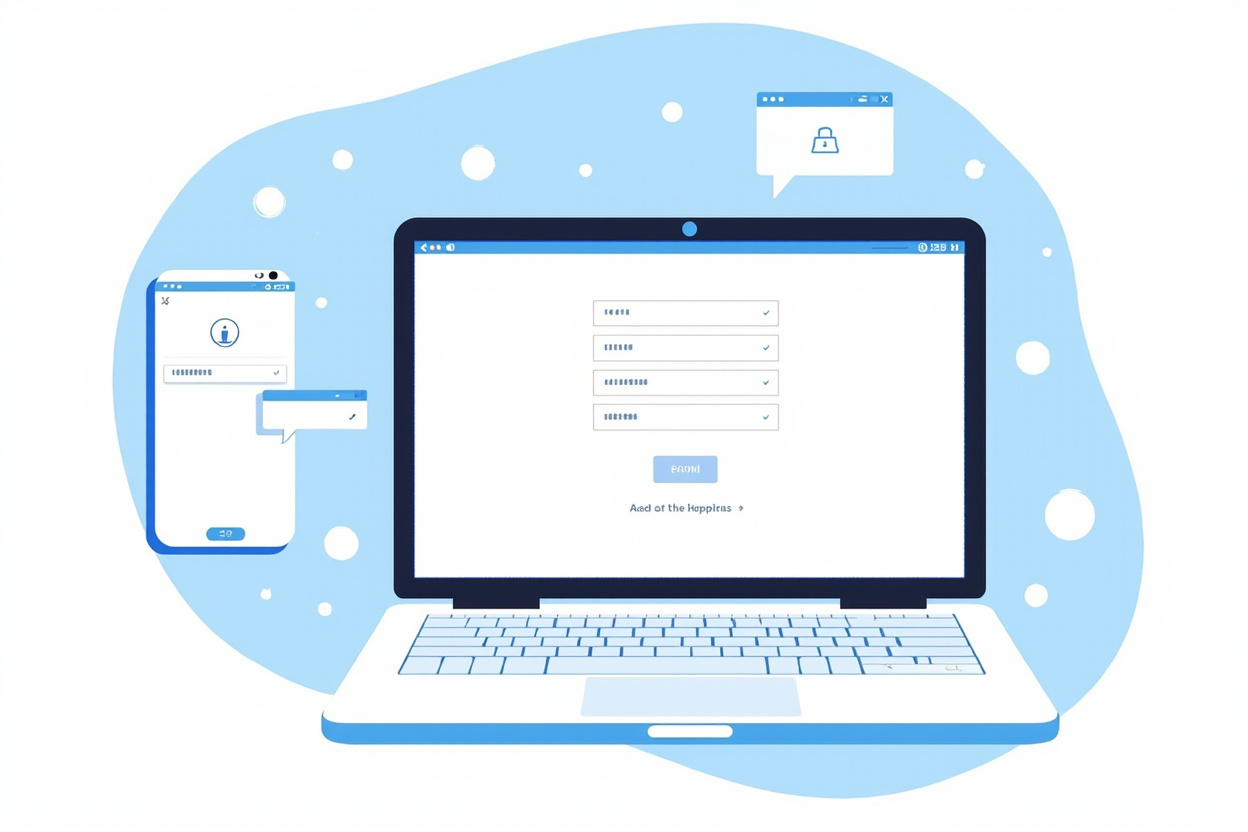
How to Use a Password Manager on All Your Devices: Complete Guide 2024
🔥 Global Summer Sale – Up to 80% OFF on AliExpress
Limited time deals on phones, electronics, home & more. New users get extra coupons!
Disclosure: We may earn a commission at no extra cost to you if you make a purchase through our links.
In an ideal world, you would only need to remember one password — the master password for your password manager. Everything else would be automatically generated, stored, and filled by the password manager, keeping your accounts secure without the burden of memorization. Thanks to modern password managers like NordPass, this ideal is achievable, and this guide will walk you through everything you need to know to use a password manager effectively across all your devices.
Whether you’re a password manager novice or someone who has been using one for years but wants to get more from it, this comprehensive guide covers setup, daily use, advanced features, and best practices for getting the most out of your password manager in 2024.
What Is a Password Manager and Why Do You Need One?
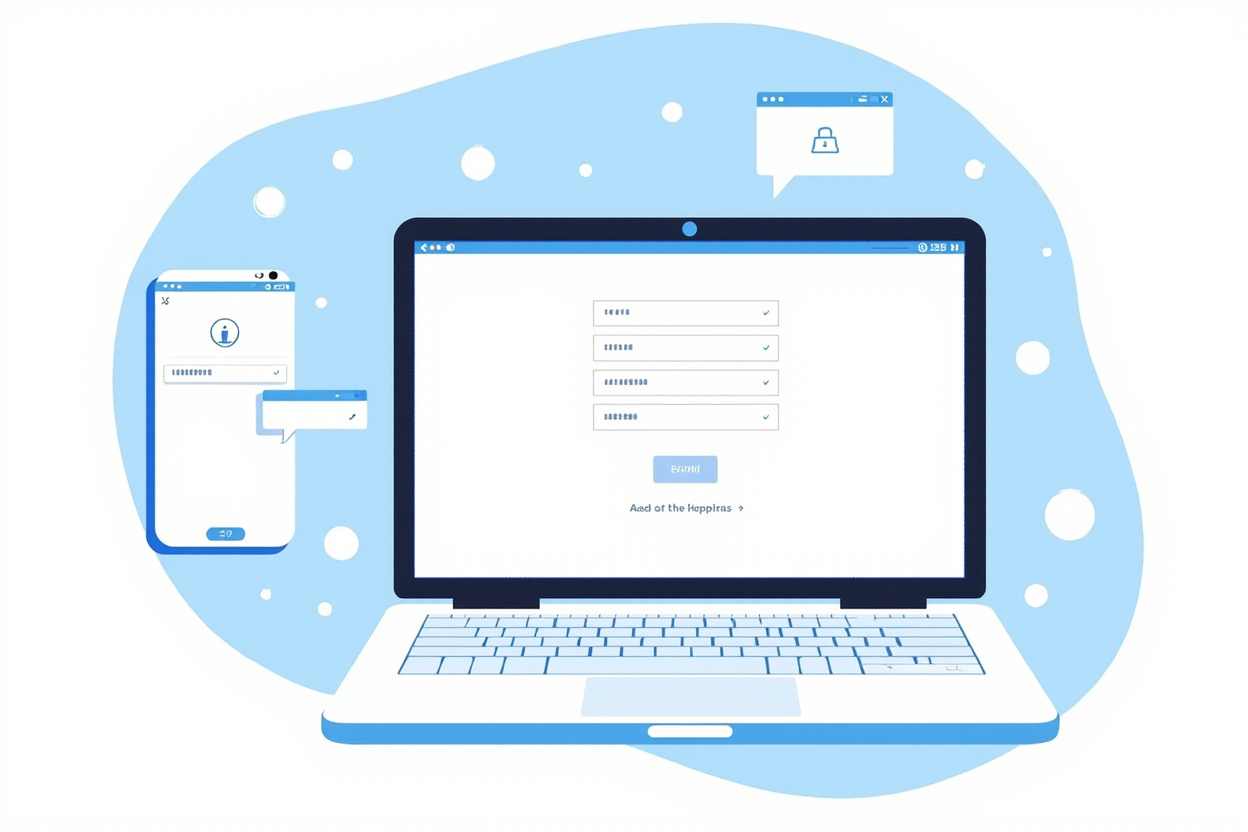
A password manager is a secure digital vault that stores all your login credentials, credit card information, notes, and other sensitive data in an encrypted format. Instead of memorizing dozens or hundreds of unique passwords, you only need to remember one — your master password, which unlocks the vault.
The benefits of using a password manager are significant:
- Stronger passwords: Password managers can generate random, high-entropy passwords that are virtually impossible to crack, far stronger than anything you’d create manually.
- Unique passwords for every account: Reusing passwords is one of the most dangerous security habits. With a password manager, there’s no reason to reuse — every account gets its own unique, strong password.
- Cross-device sync: Modern password managers sync your vault across all your devices, meaning your passwords are always available whether you’re on your phone, tablet, or computer.
- Security monitoring: Many password managers monitor known data breaches and alert you if any of your saved credentials appear in breach databases.
Getting Started: Setting Up Your Password Manager
Step 1: Choose and Download Your Password Manager
For this guide, we’ll use NordPass as our example, but the general principles apply to most password managers including 1Password, Bitwarden, and others. Start by visiting the NordPass website and signing up for an account. You’ll need to provide your email address and create a master password.
Your master password is the most important password you’ll ever create — it’s the key to your entire digital life. Make it strong and unique. The best master passwords are long passphrases rather than complex single words. Something like “correct-horse-battery-staple-vintage” is stronger and easier to remember than “P@ssw0rd!”
Write your master password down on paper and store it somewhere safe — in a locked drawer, a home safe, or with a trusted family member. If you forget it, in most cases, the password manager cannot recover it. This is by design — a recoverable master password would be a security vulnerability.
Step 2: Install the App and Browser Extensions
After creating your account, download the NordPass app on all your devices. NordPass is available for Windows, macOS, Linux, iOS, and Android. Download from the official website or official app stores — avoid third-party download sites.
In addition to the app, install the browser extension for the browsers you use. Browser extensions allow the password manager to automatically detect login forms on websites and offer to fill your credentials. NordPass offers extensions for Chrome, Firefox, Safari, Edge, and Opera. The extension is what makes the day-to-day experience seamless.
Step 3: Import Existing Passwords
If you’ve been using browser-saved passwords or another password manager, most password managers offer import tools to migrate your existing credentials. NordPass can import from most major password managers and from browser-saved password databases.
Taking the time to import existing passwords means you won’t have to manually re-enter every credential, which can be a significant time saver if you have many accounts.
Daily Use: How Password Managers Work in Practice
Logging Into Websites and Apps
Once your password manager is installed and your browser extension is active, logging into websites becomes seamless. Here’s the typical workflow:
Navigate to a website login page. The password manager extension will detect the login form and either display a popup asking if you want to fill your credentials, or it will automatically fill the username and password fields if the credentials are already saved. If the website is new, you’ll enter your credentials as usual, and the password manager will offer to save them for future use.
When saving a new credential, NordPass will also offer to save the website URL and any associated notes. This makes it easy to find saved logins later by searching for the website name or URL.
Generating Strong Passwords
One of the most valuable features of a password manager is the built-in password generator. Instead of creating passwords yourself — which almost always results in patterns that are easier to crack — let the password manager generate truly random passwords.
In NordPass, you can access the password generator by clicking the extension icon and selecting “Generate password.” You can customize the length (longer is better — 16 characters minimum, 20+ for critical accounts), character types, and whether to include ambiguous characters. For most accounts, a 20-character password using all character types strikes a good balance between security and convenience.
When you create a new account on a website, use the password generator to create a unique, strong password, and the password manager will offer to save it automatically when you complete the sign-up process.
Organizing Your Vault
Most password managers organize saved items into categories: Logins, Credit Cards, Notes, and Identities (personal information). Some also support custom folders for additional organization.
Take time to organize your vault, particularly if you have many saved items. Create folders for different categories — work accounts, personal accounts, financial accounts — and move items accordingly. This makes it easier to find what you need quickly, especially in an emergency when you need to access a specific account quickly.
Using Your Password Manager Across Multiple Devices
Phone and Tablet
The mobile experience is where password managers truly shine. On your phone, the NordPass app works with your device’s biometric authentication (Face ID or Touch ID) to unlock the vault, meaning you don’t need to type your master password every time. This convenience is essential for mobile use — typing a complex master password on a phone keyboard would be tedious and discourage regular use.
On mobile, NordPass can also integrate with the operating system’s autofill framework, meaning your saved credentials will appear automatically in apps and browser fields just as they do on desktop. This requires enabling autofill in your phone’s settings, which NordPass guides you through during setup.
Desktop Computer
The desktop experience centers on the browser extension. With the extension installed and logged in, credential filling happens automatically on most websites. You can also access the full NordPass desktop app for managing your vault, generating passwords, and accessing other features.
Most password managers also support keyboard shortcuts for quick access. In NordPass, a keyboard shortcut opens a quick-search window where you can search for saved items without switching away from your current window.
Sync Across Devices
One of the most important features of modern password managers is cross-device sync. Your vault is stored encrypted in the cloud, and when you add or update a credential on one device, it automatically syncs to all your other devices within seconds.
This means you can add a new password on your work computer and have it available on your phone before you even leave the office. The encryption happens on your device before data is uploaded — the cloud storage provider never has access to your unencrypted data.
Advanced Features to Get the Most From Your Password Manager
Secure Notes and Document Storage
Beyond passwords, password managers can securely store sensitive notes, documents, and files. Use secure notes to store things like:
- Wi-Fi network passwords
- Software license keys
- Emergency contact information
- Passport numbers and travel documents
- Bank account details and routing numbers
- Cryptocurrency wallet recovery phrases
By storing these in your password manager, they’re encrypted, accessible from any device, and recoverable if you lose physical records.
Data Breach Monitoring
Many password managers include a breach monitoring feature called “Watchtower” in NordPass or similar names in other services. This feature checks your saved email addresses against databases of known data breaches and alerts you if your information appears in a breach.
If a breach is detected, the password manager will show you which accounts are affected and prompt you to change the compromised passwords. This proactive monitoring is one of the most valuable security features a password manager provides, as many data breaches expose credentials that are then used in credential-stuffing attacks against other services.
Emergency Access
Most password managers offer an emergency access feature that allows you to designate trusted contacts who can request access to your vault in case of an emergency. If something happens to you, your designated emergency contact can request access to your vault. You’ll receive a notification, and after a waiting period (typically one week), the emergency contact gains access.
This feature is morbid to think about but practical for ensuring that important accounts — financial, medical, business — are accessible to those who need them in exceptional circumstances.
Sharing Passwords Securely
If you need to share a password with someone — a streaming service login with family, for example — password managers offer secure sharing features. Rather than sending a password via text message or email (both of which are highly insecure), you can share it through your password manager.
Shared items are encrypted and can be configured to allow the recipient to use the password but not see the actual password, or to give them full access. Some password managers also offer shared vaults for families or teams, where multiple people can access and contribute to a common set of credentials.
Password Manager Security Best Practices
Use a Strong, Unique Master Password
Your master password is the only thing protecting your entire vault. Make it strong — at least 12 characters, ideally more. Use a passphrase rather than a word with substitutions (which are less effective than most people think). Write it down somewhere safe and never reuse it on any other service.
Enable Biometric Authentication
On devices that support it, enable biometric authentication (fingerprint or face recognition) as a shortcut to unlock your vault. Biometrics are convenient and generally secure, but remember that they’re a convenience feature — if someone really wants to access your vault, they can still use the master password directly.
Keep Your Recovery Options Updated
Update your recovery email address and phone number if they change. Most password managers offer recovery options if you forget your master password, but these only work if the recovery information is current.
Regularly Audit Your Vault
Every few months, go through your vault and check for old, unused, or duplicate passwords. Delete accounts you no longer use and update weak passwords you may have created before you started using the password generator. This periodic audit keeps your vault lean and your security posture strong.
NordPass offers an excellent balance of security, ease of use, and cross-platform support. Start with their free tier to try the experience, then upgrade to Premium for cross-device sync and advanced features.
Try NordPass — Free to Start →
Disclosure: We may earn a commission at no extra cost to you if you make a purchase through our links. This site contains affiliate links.
Conclusion
A password manager is one of the most impactful security tools you can add to your digital life. The initial setup takes some time — importing existing passwords, installing apps and extensions on all your devices — but once complete, your daily experience is seamless. Logging into websites becomes effortless, creating new accounts is safe because every password is unique and strong, and you gain peace of mind knowing your credentials are encrypted and protected.
The most important habit to develop is relying on the password manager for everything. Whenever you need to log into an account, use the password manager. Whenever you create a new account, generate a password through the manager. Over time, your vault grows and your need to remember passwords diminishes to just the master password.
In 2024, there is simply no reason to use weak, reused passwords across your online accounts. The small investment of time to set up a password manager pays dividends in security and convenience that you’ll appreciate every single day.
Ready to Secure Your Digital Life?
Stop reusing passwords and start using a password manager today. Your future self will thank you.
Disclosure: This site contains affiliate links. We earn a commission at no extra cost to you.
Leave a Reply