
How to Use a Password Manager on All Your Devices: Complete 2024 Guide
🔥 Global Summer Sale – Up to 80% OFF on AliExpress
Limited time deals on phones, electronics, home & more. New users get extra coupons!
Disclosure: We may earn a commission at no extra cost to you if you make a purchase through our links.
Most people know they should use unique, strong passwords for every online account. Almost nobody actually does it. The reason is simple: remembering 50+ complex passwords is genuinely impossible, and writing them down is a security disaster. This is exactly the problem that password managers solve — and in 2024, they’ve become the single most important tool in your digital security toolkit.
In this comprehensive guide, we’ll walk you through everything you need to know to set up and use a password manager across all your devices — Windows PC, Mac, iPhone, Android, and every browser you use. By the end, you’ll have a fully functional password management system that makes your digital life both more secure and more convenient.
What Is a Password Manager and Why Do You Need One?
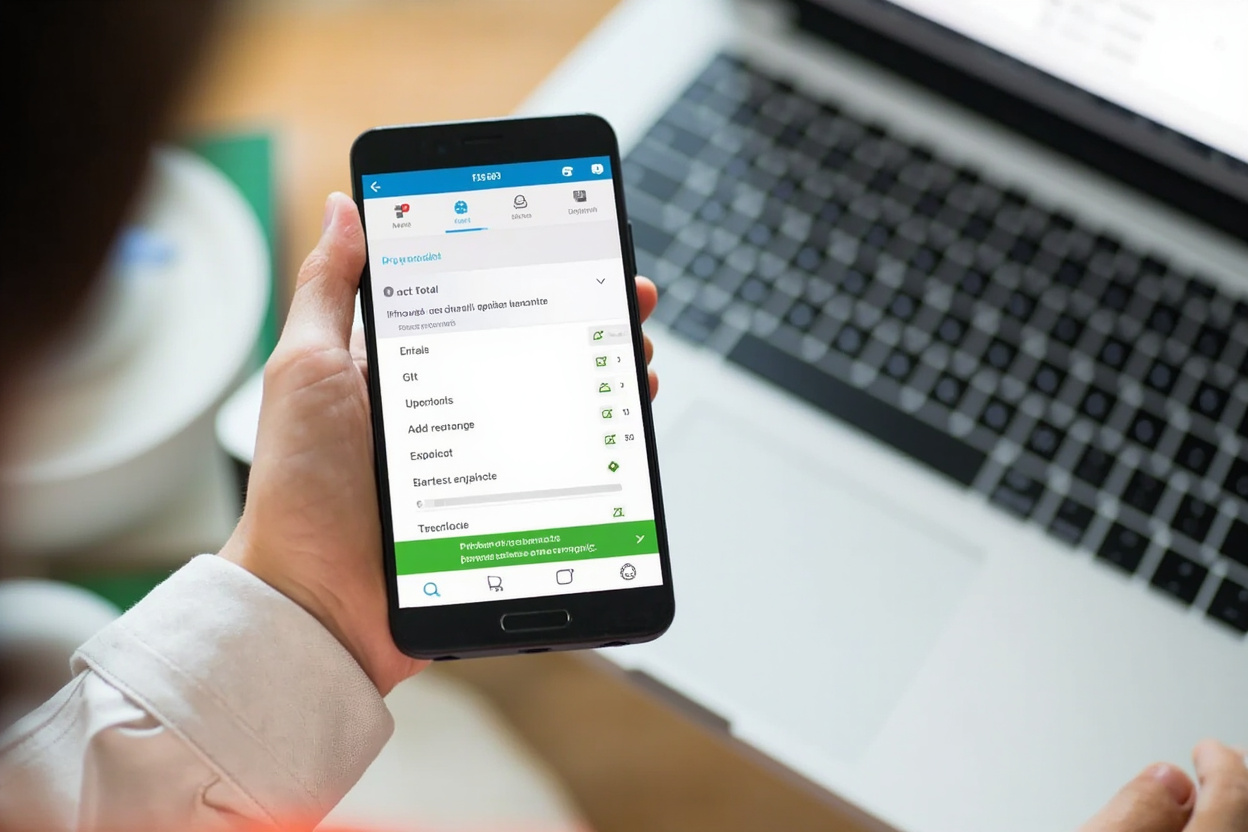
A password manager is a secure digital vault that stores all your login credentials, generates strong random passwords, and automatically fills them into websites and apps. Instead of memorizing dozens of complex passwords, you only need to remember one master password — the key that unlocks your vault.
Beyond passwords, modern password managers can store:
- Credit card numbers and billing information
- Secure notes (wifi passwords, safe combinations, personal documents)
- Identities (passports, driver’s licenses, IDs)
- Bank account credentials
- Medical records and prescriptions
The security case for password managers is compelling: the 2024 Verizon Data Breach Investigations Report found that over 80% of hacking-related breaches involved weak or reused passwords. A password manager eliminates both problems — each account gets a unique, complex password that you never have to remember.
Choosing the Right Password Manager
Before diving into setup, let’s quickly cover what to look for when choosing a password manager:
- Zero-knowledge architecture: The service provider must not be able to access your data. Your master password never leaves your device.
- AES-256 encryption: The gold standard for data encryption — used by governments and banks worldwide.
- Multi-device sync: Your vault must be accessible on all your devices simultaneously.
- Biometric unlock: Fingerprint or Face ID unlock for convenience without sacrificing security.
- Breach monitoring: Alerts when your saved credentials appear in known data breaches.
- Affordable pricing: Many password managers offer excellent free tiers.
NordPass is our top recommendation for most users — it combines strong security (XChaCha20 encryption + Argon2 key derivation), an intuitive interface, and a genuinely useful free plan with unlimited password storage across unlimited devices.
Step 1: Setting Up Your Password Manager
Download and Install
The first step is to download your chosen password manager on every device you use. Most password managers support:
- Desktop: Windows 7+, macOS (10.12+), Linux (via GUI or CLI)
- Mobile: iOS 13+, Android 8+
- Browser Extensions: Chrome, Firefox, Safari, Edge, Brave, Opera
Download from the official website or your device’s app store. Avoid third-party download links, as these could be compromised.
Create a Strong Master Password
Your master password is the single most important password you’ll ever create — it protects your entire vault. Here’s how to create a strong one:
- Length over complexity: A 16-20 character passphrase is stronger than an 8-character random string. Use something like “correct-horse-battery-staple” or “PurpleElephantRunsFast2024!”
- Never reuse it: This password should be unique to your password manager — never used anywhere else
- Never share it: No legitimate password manager service will ever ask for your master password
- Write it down and store it safely: Yes, really — write it on paper and store it in a secure location (not digitally). You need a backup in case you forget it.
Enable Biometric Unlock
Once your account is created, enable biometric unlock (fingerprint or Face ID). This allows you to access your vault quickly while maintaining strong security — biometric data stays on your device and cannot be reverse-engineered from the vault.
Step 2: Importing Your Existing Passwords
If you’ve been using your browser to store passwords (which most people have), you’ll want to import these into your dedicated password manager. Here’s how to do it for the most common browsers:
Google Chrome
- Go to chrome://settings/passwords
- Click the three-dot menu next to “Saved Passwords”
- Select “Export” and save the CSV file
- Open your password manager and use its import tool to load the CSV
Mozilla Firefox
- Go to about:logins (enter in the address bar)
- Click the “…” menu and select “Export Logins”
- Save the CSV and import into your password manager
Safari
Safari’s passwords are stored in the macOS Keychain. On macOS Ventura and later, go to System Settings > Passwords > Export. Alternatively, use your password manager’s Safari extension import tool.
After importing, go through your passwords and update any that are weak or reused. Your password manager’s security dashboard (built into most password managers) will show you which passwords need updating.
Step 3: Setting Up Browser Extensions
The browser extension is where a password manager truly becomes indispensable — it auto-fills your credentials as you browse, meaning you never have to manually type a password again.
Installing the Extension
- Go to your browser’s extension store (Chrome Web Store, Firefox Add-ons, etc.)
- Search for your password manager’s name
- Install the official extension (check the publisher name matches)
- Click the extension icon in your browser toolbar and log in
Configuring Auto-Fill
Once installed, configure the extension to:
- Offer to save new passwords: Enable this so every new login is automatically saved
- Auto-fill login forms: Enable this so credentials are automatically entered
- Suggest strong passwords: Enable this so the password generator offers to create strong passwords for new accounts
Step 4: Setting Up Mobile Access
Your phone and tablet are where password managers truly shine. On mobile, you use your fingerprint or Face ID to unlock the vault, then the app’s share sheet or auto-fill framework to enter passwords into apps and browsers.
iOS (iPhone/iPad)
- Download the password manager app from the App Store
- Log in with your account credentials
- Enable biometric unlock when prompted
- Go to Settings > Passwords > Password Options > AutoFill Passwords
- Enable your password manager as an AutoFill provider
After this, when you tap a login field in Safari or any app, your password manager will appear as an AutoFill option.
Android
- Download the password manager from Google Play
- Log in and enable biometric unlock
- Go to Settings > Security > AutoFill service > AutoFill with Google
- Select your password manager as the default AutoFill service
Step 5: Using Your Password Manager Daily
Creating Strong New Passwords
Whenever you sign up for a new account, let your password manager generate a strong random password. Most generators create passwords like “K8#mNp$2qRj!xL7w” — 16-20 characters of complete randomness that’s effectively impossible to crack.
Configure your generator to create passwords of at least 16 characters, with a mix of uppercase, lowercase, numbers, and symbols. Most password managers let you set this as a default.
Auto-Filling Logins
When you visit a website where you have saved credentials:
- The password manager extension will automatically detect the login form
- Click the extension icon and select the correct credentials
- The form auto-fills and submits — you’re logged in
This process takes about 2 seconds and eliminates the frustration of forgotten passwords entirely.
Sharing Passwords Securely
Many password managers offer secure sharing features — allowing you to share specific credentials with trusted family members without revealing the actual password. The recipient can use the shared credential but cannot see the underlying password. This is particularly useful for shared family accounts (streaming services, utilities, etc.).
Emergency Access
Most premium password managers include an emergency access feature — you can designate trusted contacts (spouse, family member, close friend) who can request access to your vault. If something happens to you, they can request access and receive your vault contents. You’re notified when a request is made and can approve or deny it.
Step 6: Ongoing Maintenance
A password manager requires minimal ongoing maintenance, but a few habits will keep your vault in excellent shape:
- Weekly: Save new passwords as you create them — the extension should do this automatically
- Monthly: Run the security audit — update any weak or reused passwords flagged by your manager
- Quarterly: Review your saved passwords and delete accounts you no longer use
- Annually: Change your master password and ensure your emergency access contacts are up to date
Common Password Manager Myths Debunked
“What if the password manager gets hacked?”
Your vault is encrypted with your master password. Even if hackers breach the service’s servers, they get only encrypted gibberish. Without your master password, the data is mathematically useless. This is called “zero-knowledge architecture” and it’s how all reputable password managers work.
“What if I forget my master password?”
This is the most legitimate concern. Unlike most services, password managers cannot reset your master password — they don’t know it. This is by design. Write your master password down and store it somewhere secure. If you’re genuinely worried, some password managers offer recovery options through trusted contacts.
“Aren’t all password managers the same?”
No. Security architectures, encryption standards, user experience, and additional features vary significantly. NordPass’s use of Argon2 key derivation is more resistant to GPU cracking than the PBKDF2 used by competitors. 1Password’s dual-key model is more robust than single-key approaches. Research before committing.
Our Recommendation
For most users, NordPass is the best choice — it combines military-grade security (XChaCha20 + Argon2), an intuitive interface that beginners find approachable, a genuinely useful free plan with unlimited device sync, and an affordable Premium plan at $2.99/month.
Setting up a password manager is a 30-minute investment that provides lifelong returns in security and convenience. Start today — your future self will thank you.
For a reliable, secure password manager with strong encryption and unlimited device sync, check out
NordPass official website
for free download and premium plan options starting at $2.99/month.
Disclosure: We may earn a commission at no extra cost to you if you make a purchase through our links. This site contains affiliate links.
Ready to Shop Smart?
AliExpress offers factory-direct prices you won’t find anywhere else. New users get exclusive welcome discounts!
Disclosure: This site contains affiliate links. We earn a commission at no extra cost to you.
Leave a Reply