
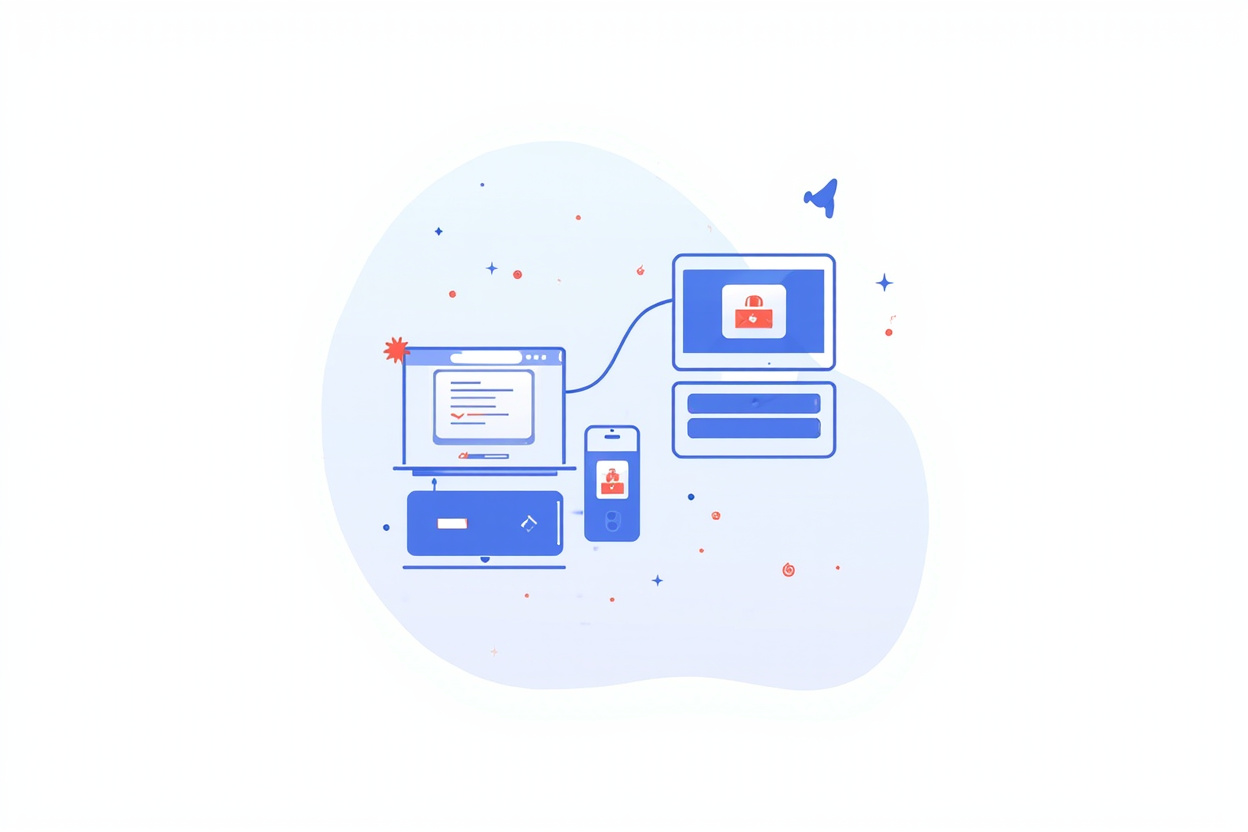
How to Use a Password Manager on All Your Devices in 2026
In our digitally connected world, managing passwords across multiple devices has become essential rather than optional. Whether you’re checking email on your phone, working on your laptop, and browsing on your tablet, you need access to your passwords everywhere. A password manager solves this problem elegantly — but only if you know how to set it up and use it effectively across all your devices.
This comprehensive guide walks you through everything you need to know about using a password manager across your smartphone, tablet, computer, and even smart TV. We’ll cover initial setup, syncing across devices, browser integration, mobile apps, security best practices, and troubleshooting common issues that arise when managing passwords across multiple platforms.
Why Password Manager Syncing Across Devices Matters
Consider how many devices you use daily: smartphone, tablet, work computer, personal laptop, perhaps a smart TV or gaming console. Now consider how many online accounts you have — email, banking, social media, shopping, streaming services, utilities, and more. Remembering unique passwords for all of these is impossible, yet using the same password across multiple services is a security disaster waiting to happen.
A password manager with cross-device sync solves this dilemma. Your passwords live in an encrypted vault that syncs across all your devices, allowing you to access strong, unique passwords wherever you need them. When you create a new password on your phone, it’s immediately available on your laptop. When you update a password on your work computer, your personal devices reflect the change.
The alternative — using weakrepeated passwords or writing them down — creates security vulnerabilities that no amount of convenience can justify.
Choosing the Right Password Manager for Multi-Device Use
Cross-Platform Compatibility
Before committing to a password manager, verify it supports all your devices. Leading options like NordPass, 1Password, Bitwarden, and Dashlane offer apps for iOS, Android, Windows, macOS, and Linux, plus browser extensions for Chrome, Firefox, Safari, and Edge. Some, like Bitwarden, offer open-source clients allowing technical users to self-host if desired.
Mobile-first users should prioritize managers with excellent iOS and Android apps. Desktop-focused users need seamless Windows or macOS integration. Those with mixed device ecosystems should verify cross-platform functionality before committing.
Sync Technology and Reliability
Modern password managers use cloud sync to maintain password consistency across devices. When you add or update a password, the encrypted vault syncs to the provider’s servers and pushes changes to all your registered devices. This happens automatically when you have internet connectivity, usually within seconds of making changes.
The encryption ensures that even if provider servers are compromised, your passwords remain secure — only your master password (which never leaves your device) can decrypt the vault. This zero-knowledge architecture means the service provider cannot access your passwords even if compelled by legal requests.
Setting Up Your Password Manager: Initial Configuration
Creating a Strong Master Password
Your master password is the key to your entire password vault — it’s the only password you’ll need to remember, so making it strong matters enormously. A good master password is at least 12 characters, combines uppercase letters, lowercase letters, numbers, and symbols, avoids personal information (birthdays, names, common phrases), and isn’t reused from any other account.
The best approach is creating a passphrase — a sequence of random words that’s long enough to be secure but memorable enough to not require writing down. For example, “correct-horse-battery-staple” is more secure than “Tr0ub4dor&3” but significantly easier to remember. Many password managers now enforce minimum strength requirements to ensure users don’t create vulnerable master passwords.
Critically, your master password cannot be recovered if forgotten. Both NordPass and 1Password (and most competitors) explicitly state this — if you forget your master password, your vault becomes inaccessible. This is intentional, as a recoverable master password would be a security vulnerability. Consider writing your master password on paper and storing it in a secure location (like a home safe) as emergency backup.
Installing Apps and Extensions
Once you’ve created your account, install the password manager on all your devices. Download from official app stores (not third-party sources) to ensure you get legitimate software. The typical installation sequence includes installing the desktop app for your primary computer, installing browser extensions for all browsers you use, installing mobile apps on your smartphone and tablet, and optionally installing on secondary computers or work devices.
When installing browser extensions, grant appropriate permissions for the extension to work properly. It needs access to see website forms and fill in credentials, but it doesn’t need access to everything on your computer. Review the permissions requested and grant only what’s necessary for password management functionality.
Importing Existing Passwords
If you’re switching from another password manager or browser-based password storage, most password managers offer import tools that migrate existing passwords. Supported sources typically include competing password managers (LastPass, Dashlane, 1Password, Bitwarden), web browsers (Chrome, Firefox, Safari, Edge), and sometimes CSV files from various sources.
The import process analyzes existing password databases and transfers credentials, including website URLs, usernames, and passwords. After importing, verify the transfer was successful by checking that expected accounts appear in your vault. Delete any duplicates or outdated entries that the import process may have created.
Using Your Password Manager on Desktop Computers
Browser Extension Functionality
The browser extension is your primary interface for daily password management on desktop. When you visit a website requiring login, the extension detects the form and either automatically fills stored credentials (if you’ve saved login for that site) or prompts you to save new credentials. The extension icon in your browser toolbar indicates the password manager’s status and provides quick access to vault functions.
When you log into a website, the extension offers to save the credentials if it’s your first time visiting or updates the existing entry if you’ve changed your password. Always allow this — it keeps your vault current and ensures you don’t forget newly created passwords. For sites with multiple accounts (personal vs work email, for example), the extension can store multiple credentials and offer a selection when logging in.
Generating Strong Passwords
When creating new accounts or updating existing passwords, use the password generator built into your manager. Access it through the browser extension or desktop app. Configure the generator to create passwords meeting or exceeding website requirements — typically 16+ characters with uppercase, lowercase, numbers, and symbols provides good security while remaining manageable.
Don’t try to create your own passwords — humans are terrible at randomness, and our “clever” password schemes are often predictable. The password generator creates truly random strings that no human could guess but that password managers can store and recall perfectly. Most password managers include a password strength indicator showing how long it would take to crack generated passwords.
Manual Entry and Organization
For credentials the browser extension doesn’t capture automatically, you can manually add entries through the desktop app or browser extension. Include the website URL, username, password, and any additional notes (security questions, account recovery info, etc.). Organizing entries into folders or tags helps manage large vaults — many users create categories like “Work,” “Personal,” “Finance,” and “Shopping” to keep credentials organized.
Most password managers also support secure notes for information beyond standard credentials — software license keys, WiFi passwords, safe combinations, or any sensitive text you want encrypted and accessible.
Using Your Password Manager on Mobile Devices
Mobile App Interface and Features
The mobile app provides full password manager functionality on your smartphone. The interface is optimized for touchscreen navigation with large tap targets and straightforward navigation. You can browse your vault, search for specific logins, view password details, copy credentials to clipboard, and launch websites directly from the app.
Biometric unlock (fingerprint or Face ID) allows quick access without typing your master password every time. This convenience encourages consistent password manager use — if unlocking requires typing a complex master password each time, you’re more likely to skip the password manager and use weak, reused passwords instead.
Auto-Fill on iOS and Android
Both iOS and Android support system-level auto-fill, allowing password managers to fill credentials in any app or browser without requiring the app to be open. Enable this in your device settings — on iOS, go to Settings > Passwords > Auto-Fill Passwords and select your password manager. On Android, go to Settings > Google > Manage Accounts > Passwords and enable your password manager for auto-fill.
Once enabled, whenever you tap a login field in any app or website, your password manager offers to fill the appropriate credentials. This system integration means you rarely need to open the password manager app directly — the auto-fill handles most situations seamlessly.
Security and Sharing Features
Mobile apps often include additional security features like breach monitoring (checking whether your credentials appear in known data breaches), security score (analyzing password strength and reuse across your vault), and secure password sharing (sharing credentials with trusted contacts without revealing the actual password). Familiarize yourself with these features and enable those relevant to your security needs.
Browser Integration Beyond Desktop Extensions
Safari and Edge Native Integration
Modern browsers include built-in password management that syncs through your device ecosystem (iCloud Keychain for Safari on Apple devices, Microsoft Authenticator for Edge). While these work, they lack the cross-platform consistency, security features, and recovery options of dedicated password managers. Consider migrating to a dedicated manager for better security and flexibility.
Dedicated password managers typically offer browser extensions for all major browsers, providing consistent functionality regardless of which browser you prefer. The extension handles credential capture (offering to save new logins), credential retrieval (filling forms when you return), and password generation (creating strong passwords during account creation).
Syncing and Conflict Resolution
Automatic Sync Mechanics
When you’re online, your password manager syncs continuously. Changes made on any device push to the cloud and pull to other devices within seconds typically. This sync is seamless — you don’t need to manually trigger it or think about it. If you’re offline when making changes, the manager queues them and syncs when connectivity returns.
Both NordPass and 1Password use end-to-end encryption, meaning your vault is encrypted on your device before syncing to the cloud. The service provider cannot read your passwords — only your device holds the decryption key. This architecture ensures that even security breaches at the provider level cannot expose your credentials.
Handling Sync Conflicts
Sync conflicts are rare but can occur when editing the same entry on multiple devices while offline. Most password managers handle this automatically, keeping the most recent version or merging changes intelligently. If you notice duplicate entries or missing passwords, checking for sync conflicts and manually resolving may be necessary.
Security Best Practices for Multi-Device Password Management
Device Security Fundamentals
Your passwords are only as secure as the devices they’re stored on. Enable device encryption, use strong PINs or biometric locks, keep operating systems and apps updated, install apps only from official sources, and avoid public WiFi for sensitive password access. A password manager on an unlocked, unpatched device provides little security benefit.
Master Password Hygiene
Never use your master password elsewhere — if another service is breached and your master password is exposed, attackers can access your entire password vault. Consider using a passphrase that differs significantly from any other password you use. Change your master password if you suspect it may have been compromised, and never share it with anyone who might write it down or use it on insecure devices.
Emergency Access and Recovery Planning
Most password managers offer emergency access — designating trusted contacts who can request access to your vault if something happens to you. Setting this up with a trusted family member or friend provides peace of mind that your digital life remains accessible if you’re incapacitated. Additionally, store your master password in a secure location (home safe, bank safety deposit box) as backup for yourself if you forget.
Troubleshooting Common Multi-Device Issues
Sync Not Working
If changes aren’t syncing between devices, first verify internet connectivity on both devices. Check that you’re signed into the same account on both (different accounts won’t sync). Force-quit and reopen the app to trigger manual sync. As a last resort, log out and back in to reset the sync connection. If problems persist, check the password manager’s status page for service disruptions.
Extension Not Working in Browser
If the browser extension stops filling passwords, verify it’s enabled in your browser’s extension settings. Try disabling and re-enabling the extension. Clear browser cache and restart the browser. Ensure the password manager app itself is logged in and functional. As a last resort, remove and reinstall the extension.
Auto-Fill Not Working on Mobile
On iOS, verify that password manager is enabled in Settings > Passwords > Auto-Fill Passwords. On Android, check Settings > Google > Manage Accounts > Passwords. Try toggling the setting off and back on. Verify you’re using the correct account for auto-fill. As a last resort, remove the account from device settings and re-add it through the password manager app.
Conclusion: Embracing Multi-Device Password Management
Setting up a password manager across all your devices requires initial investment of time and attention, but the security and convenience benefits compound over years of use. Once configured, accessing strong, unique passwords on any device becomes automatic and invisible — you stop thinking about passwords entirely and focus on the actual activities you want to accomplish online.
The multi-device approach means you’re never stuck without access to an important password. Need to log into your bank from a friend’s computer? Your password manager is there. Have to access work credentials on your personal phone? It’s all synced. This flexibility and security combination makes password managers indispensable tools for modern digital life.
For seamless cross-device password management, check out
NordPass multi-device plans
featuring encrypted sync, biometric unlock, and secure credential sharing across all your devices.
Secure All Your Devices Today
A password manager protects your digital life across every device you use. Start your free trial and experience the convenience of secure, synced passwords.
Disclosure: This site contains affiliate links. We earn a commission at no extra cost to you.
Leave a Reply